Analyze LinkedIn, InfoJobs and Indeed jobs without copying and pasting
The extension adds an “Analyze in Keyverta” button on postings from these job boards. Click it and Keyverta opens with the job description and title already loaded; then you pick your resume and run the analysis.
The link opens the official Chrome Web Store listing. You confirm the installation there.
From click to first analysis
The whole journey, from the store listing to your first analysis.
- 1
Open the Chrome Web Store listing
The button on this page only takes you to the extension's official listing. There you can see its description, permissions and reviews before deciding.
- 2
Install it
Click “Add to Chrome” and confirm. Chrome will warn that it can read and change data on LinkedIn, InfoJobs and Indeed: that's what it needs to show the button on those pages. If you like, pin its icon to the toolbar from the puzzle-piece menu.
- 3
Open a posting on a supported job board
Go to the job you're interested in. The green “Analyze in Keyverta” button appears in the bottom right. You can also click the extension icon and choose “Capture job from this tab”.
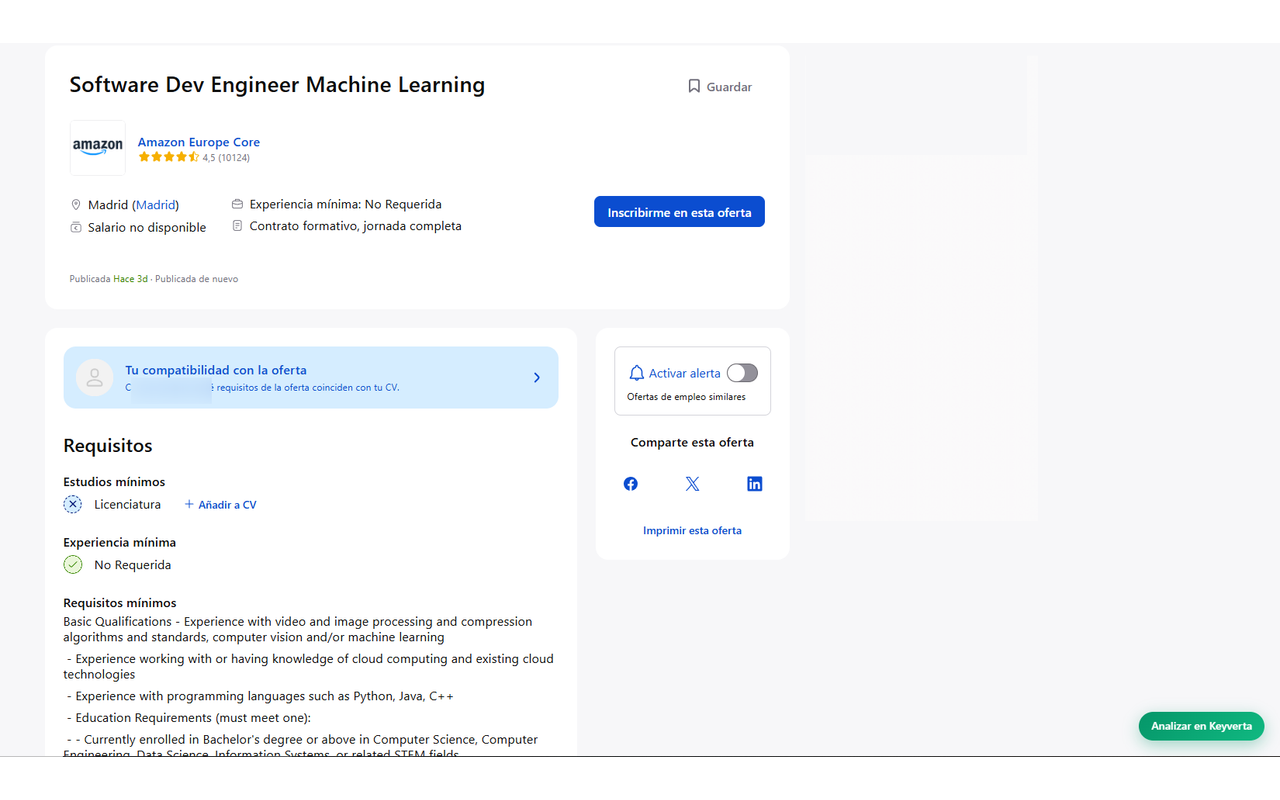
Step 3: the button appears in the bottom right of the posting. - 4
Click the button
Keyverta opens in a new tab, in the analysis wizard, with the job description and title already filled in.
- 5
Run your first analysis
Sign in or create a free account, pick or upload your resume and hit analyze. Nothing is processed until this step: you'll see a guidance score, the missing keywords and what to rewrite.
Where it works
The extension only runs on these addresses, declared in its manifest:
- LinkedInlinkedin.com
- InfoJobsinfojobs.net
- Indeedindeed.com · indeed.es
On other job boards the button doesn't appear. You can copy the job description and paste it into “New analysis”.
Job boards change their layout often. If the extension doesn't detect the description, select the text with your mouse and click the button again.
What exactly it captures
- Only the job description and its title. It's designed to leave out the rest of the page and the board's suggested jobs; if something slips through, you can fix it before analyzing.
- Only when you click the button or the extension icon: it sends nothing in the background and doesn't log your browsing.
- The extension has no servers or analytics of its own. The text travels in the part of the address after “#”, which the browser doesn't send to any server, and it's only processed when you run the analysis.
Frequently asked questions
- Do I need a Keyverta account to use the extension?
- Not to capture the posting. To see the analysis, yes: sign in or create a free account.
- What permissions does it ask for?
- Only access to the LinkedIn, InfoJobs and Indeed pages listed above, which it needs to show the button and read the posting when you click it. It doesn't ask for access to other sites or your history.
- Does it work in other browsers?
- It's published on the Chrome Web Store and built for Chrome. Other Chromium-based browsers that can install extensions from that store, such as Edge or Brave, are usually compatible, but we can't guarantee it for all of them.
- I don't see the button on a posting — what now?
- Reload the page: job boards load postings dynamically. If it still doesn't show, select the description text with your mouse and click the extension icon: it will use your selection as the job posting.
- How do I uninstall it?
- From Chrome's extensions menu (the puzzle-piece icon) or at chrome://extensions.
Start with a job you care about
Install the extension, open a posting on LinkedIn, InfoJobs or Indeed and click the button. If you'd rather not install anything, you can also paste the job straight into the resume checker.